ImageFinderLite
Class Library
3. Full Image Recognition and
Image Signature
4.
Attrasoft.TransApplet.ImageFinderLite Component
7. Codes for Each of the
Steps
In this
article, we will briefly describe how to add an image recognition component
into an application. In particular, we will discuss how to identify a full image.
1.� TransApplet
TransApplet is an Attrasoft
developer tool (.Net Class Library) that enables System Integrators, Solution
Developers, and Individuals to quickly add Image Recognition capability to
their products and services. It is the software library used to create the
ImageFinder.
TransApplet
is the matching engine for all Attrasoft products, including the ImageFinder. ImageFinder
for Windows is an off-the-shelf Application Software that enables System
Integrators, Solution Developers, and Individuals to quickly add image
recognition capability to their applications.
2. ImageFinderLite
ImageFinderLite
for Windows is an Off-the-Shelf Application Software.
ImageFinderLite
for Windows searches for an image from a folder in four clicks. The
ImageFinderLite is the Windows version and AttraSeek is the Internet version.
For more
details, see:
http://attrasoft.com/products_imagefinderLite.asp
3.
Full Image Recognition and Image Signature
Our
approach uses image signature to find and match images.
The
unique attributes of an image � its �image signature� - are compared against a
library of image signatures that have been taken earlier. All image matching
uses image signatures.
4.
Attrasoft.TransApplet.ImageFinderLite Component
Attrasoft.TransApplet80.ImageFinderLite is a
component Attrasoft TransApplet. To use the ImageFinderLite object, you will
need 5 steps:
Step
1. Set the Folder that contains the images you want to search through.
Step
2. Create a Image Signature Library from the folder.
Step
3. Load the Signature Library into the ImageFinderLite object.
Step
4. Get a key image file name, which will be matched against the library.
Step 5. Make a 1:N search.
5.
Interface
The
ImageFinderLite interface is given below:
public interface� I_ImageFinderLite
��� {
������� //variables:
������� //1. Foldername (string)
������� //2. Library Name (string)
������� //3. KeyImage (string)
������� //4. Signature (Attrasoft object)
������� //5. Result (Attrasoft object)
������� //step 1 Set Library Folder
������� bool setFolder(string
folderName);
������� string getFolder();
������� //step 2 Create Image Siganture Library
������� bool computeSignatureLibrary();
������� bool setLibraryName(string
a1File);
������� string getLibraryName();
������� //setp 3 Load Signature Library
������� bool loadLibrary();
������� //step 4 Get key file name
������� bool setKeyImage (string
key);
������� string getKeyImage();
������� //step 5 search
������� bool� search (
);
������� bool setOutputFileName (string
b1File);
������� string getOutputFileName ( );
��� }
Step 1. Set the Folder
that contains the images you want to search through.
|
bool setFolder(string
folderName) string getFolder() |
Use
setFolder (string folderName) to set the
folder that contains the images you want to search through; use getFolder()
to see the current setting. |
Step 2.
Create Image Siganture Library from the folder.
|
bool computeSignatureLibrary() |
Use
computeSignatureLibrary() get a file that contains the image signatures from
the specified folder. |
|
bool setLibraryName(string
a1File) string getLibraryName() |
Use
setFolder setLibraryName(string a1File) to
set the image signature file name that contains the images you want to search
through. The default file is �.\data\a1.txt�, where �.� is the application
folder. Use getLibraryName()to see the current setting. |
Step 3.
Load the Signature Library into the ImageFinderLite object.
|
bool loadLibrary(); |
Use
loadLibrary()to load the Signature Library into the
ImageFinderLite object. |
Step 4.
Get a key image file name, which will be matched against the library.
�
|
bool setKeyImage (string
key) string getKeyImage() |
Use
setKeyImage (string key) to set the unknown
image that you want to search; use getKeyImage() to see the current setting. |
Step 5. Make a 1:N search.
|
bool�
search ( ) |
Use
search ( ) to make an 1:N search. |
|
bool setOutputFileName (string
b1File) string getOutputFileName ( ) |
Use
setOutputFileName (string b1File) to set the
output file name; the default name is �.\data\b1.txt�, where �.� is the
application folder.� Use
getOutputFileName ( ) to see the current setting. |
6.
Programming Example
Now we
will show a programming example.
1. Create
a User Interface in Figure 1.
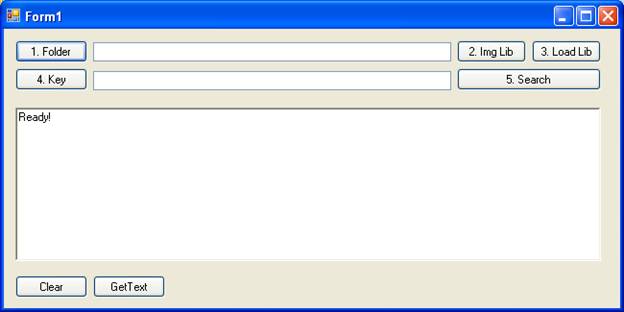
Figure 1. A User Interface,
which contains the five steps.
2. Link to the Library

Figure 2. Add the class library;
see the highlighted areas in the Solution Explorer.
3. Initial files.
Apart from linking the
class library, there are several data files required by. You will need to copy
�.\data\*.*� from the CD into your project folder.
4. ImageFinderLite object
Add an
imageFinderLite object:
Attrasoft.TransApplet80.ImageFinderLite.ImageFinderLite ifl;
��
Create the object
in the form constructor:
��������
public
Form1()
{
�InitializeComponent();
ifl = new Attrasoft.TransApplet80.ImageFinderLite.ImageFinderLite
( this.richTextBox1 );
}
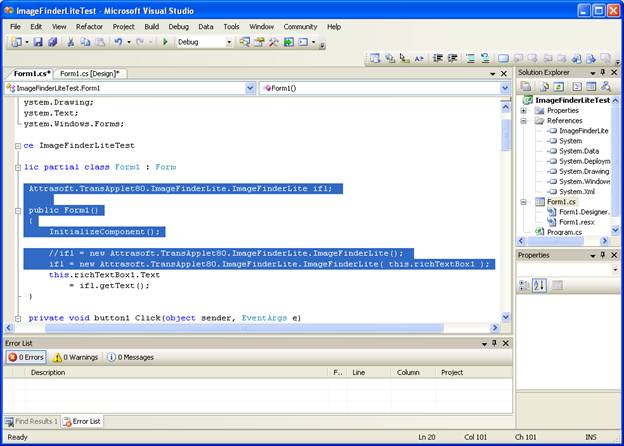
Figure 3. Add the
ImageFinderLite object; see the highlighted areas in the Solution Explorer.
5. Following the 5 steps:
Step 1.
Set the Folder that contains the images you want to search through.
Step 2.
Create the Image Signature Library from the folder.
Step 3.
Load the Signature Library into the ImageFinderLite object.
Step 4.
Get a key image file name, which will be matched against the library.
Step 5. Make a 1:N search.
The details are given in the next section.
7.
Codes for Each of the Steps
Step 1.
Set the Folder that contains the images you want to search through.
private void
button1_Click(object sender, EventArgs e)
������� {
����������� if
(folderBrowserDialog1.ShowDialog() != DialogResult.OK)
��������������� return
;
����������� string
cDir = folderBrowserDialog1.SelectedPath;
����������� textBox1.Text = cDir;
����������� ifl .setFolder ( cDir );
������� }
Step 2.
Create the Image Signature Library from the folder.
private void
button2_Click(object sender, EventArgs e)
������� {
����������� bool
b = ifl.computeSignatureLibrary();
������� }
Step 3.
Load the Signature Library into the ImageFinderLite object.
private void
button3_Click(object sender, EventArgs e)
������� {
�������������� if
(openFileDialog1.ShowDialog() != DialogResult.OK)
������������������� return;
��������������� string
fileName = openFileDialog1.FileName;
��������������� textBox2.Text = fileName;
��������������� ifl.setKeyImage(fileName);
������� }
Step 4.
Get a key image file name, which will be matched against the library.
��� private void button4_Click(object
sender, EventArgs e)
������� {
����������� bool
b = ifl.loadLibrary ();
������� }
Step 5. Make a 1:N search.
�� private void button5_Click(object
sender, EventArgs e)
������� {
����������� ifl.search () ;
������� }
8.
Test Run
Run the
software to get Figure 1; then
�
Click Button 1 to set the Folder
that contains the images you want to search through.
�
Click Button 2 to create the Image
Signature Library from the folder.
�
Click Button 3 to load the Signature
Library into the ImageFinderLite object.
�
Click Button 4 to get a key image
file name, which will be matched against the library.
�
Click Button 5
to Make a 1:N search.
The
results are given the text window in Figure 1 and in a text file,
�.\data\b1.txt�.